ReUI Ecosystem (4z0t)
ReUI is the most comprehensive, feature-rich, and visually polished UI mod suite for FAF by modder 4z0t. It fundamentally overhauls the interface: factory queues, hotkeys, scoreboards, ACU actions, and economy displays.
There is one massive catch. 4z0t writes brilliant code, but when it comes to project organization and maintenance - he is an absolute trainwreck. Some updates go to GitHub, some drop into his Discord, some update in the client, and some sit on Boosty.
Ecosystem Architecture: How It Works
- Core Framework (
ReUI) - mandatory technical foundation for every mod in the lineup. - Standalone Modules - mods requiring only the core library (
ReUI.Score,ReUI Reclaim,ReUI.Hotbuild, etc.). Can be enabled selectively. - Dock Container (
ReUI.ActionsPanel) - effectively a second library. Does nothing on its own until you install specific sub-modules (ACU upgrades, missile launch, etc.).
The base ReUI mod must be installed and active at all times. Enabling any module (e.g. ReUI.Score or ReUI.ActionsPanel) without the core ReUI active will break everything.
Section Modules:
- ReUI - Core library + Some QoL functions
- ReUI.ActionsPanel - empty dock container (requires extensions: ACU, missiles, templates)
- ReUI.Score - compact, modern player scoreboard
- ReUI.Reclaim - mass clustering and total reclaim counter
- 📦ReUI.Hotbuild - advanced custom cycle-bind builder
- ReUI.Construction - revamped construction panel
- ReUI.Economy - scalable resource tracker
Core ReUI & Built-in QoL (ReUIUIQoL)
The ReUI core is not just a backend library - it includes the built-in ReUIUIQoL module, which handles auto-hiding clutter (making mods like Auto Hide UI completely obsolete):
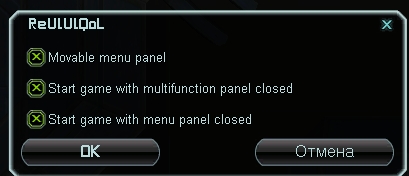
ReUIUIQoL Settings:
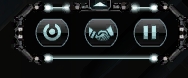
Start game with menu panel closed
Auto-collapses the top system menu at match start.
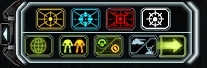
Start game with multifunction panel closed
Auto-collapses the orders panel at match start.
Movable menu panel
Allows freely dragging the top menu bar anywhere on screen.
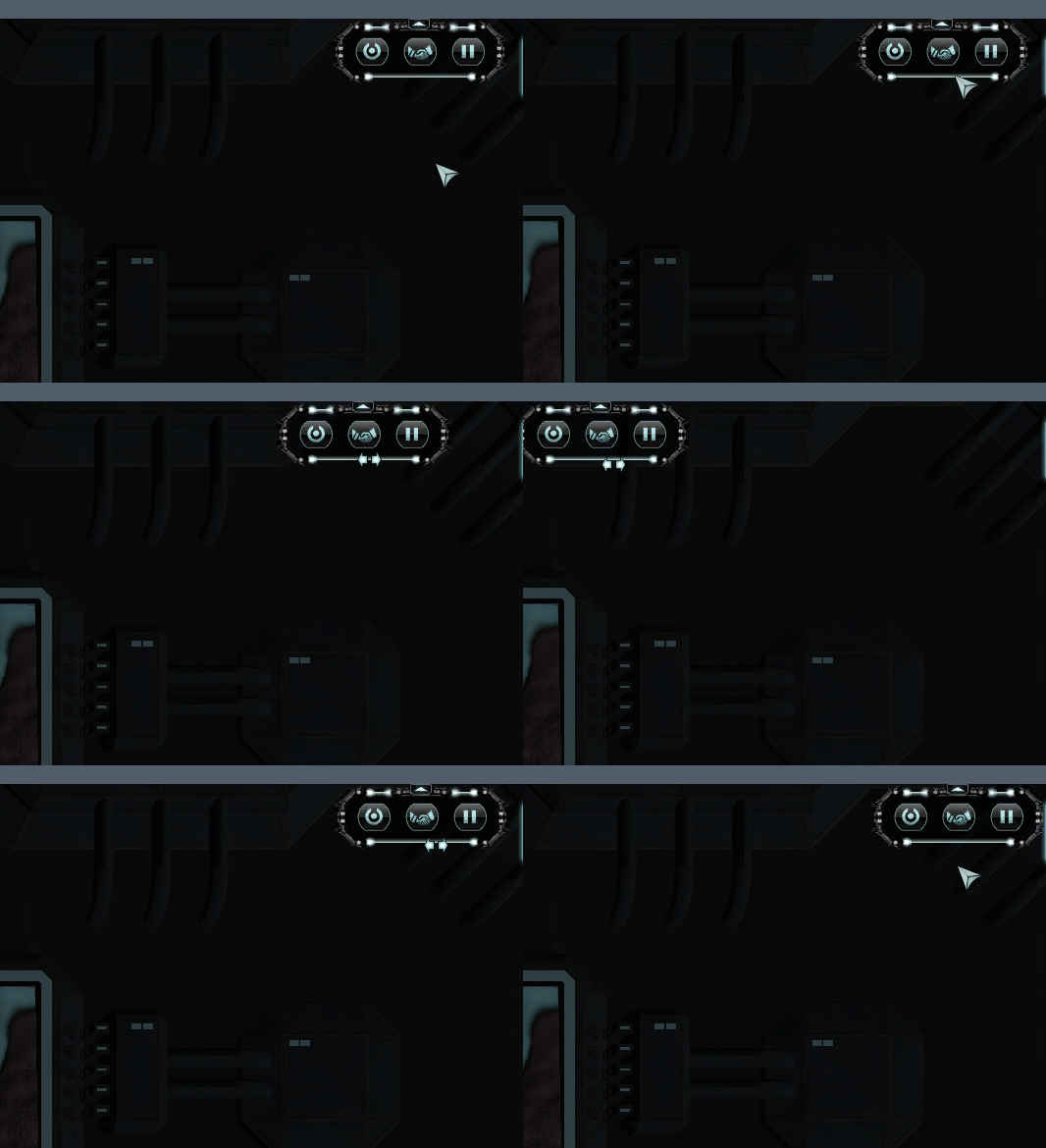
Dragging is counter-intuitive: hover strictly over the bottom edge of the top menu bar, hold MMB (middle mouse button), and drag.
Settings: F10 → ReUI Options → ReUI.UI.QoL
🧩 ReUI.ActionsPanel (+ Extensions)
Modular dock panel for quick access to orders, abilities, and upgrades.
ActionsPanel shows nothing on screen by default. You must install at least one extension from the list below.
Dependencies: ReUI
Settings: F10 → ReUI Options → Actions Panel
Available Extensions:
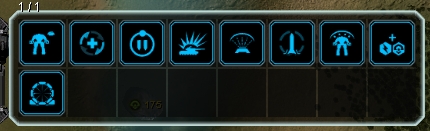
1. ACU Enhancements
Displays available ACU/SACU upgrade icons directly on the actions panel.
- Queue enhancements (gun, shield, RAS, engineering) in one click without opening the enhancement menu
2. ReUI.MissilePanel
Quick missile weapon management dock.
- Displays ready missile counts for TMLs and strategic silos (Nukes)
- Quick Fire: selecting a TML or Nuke via the panel automatically primes the attack order on cursor
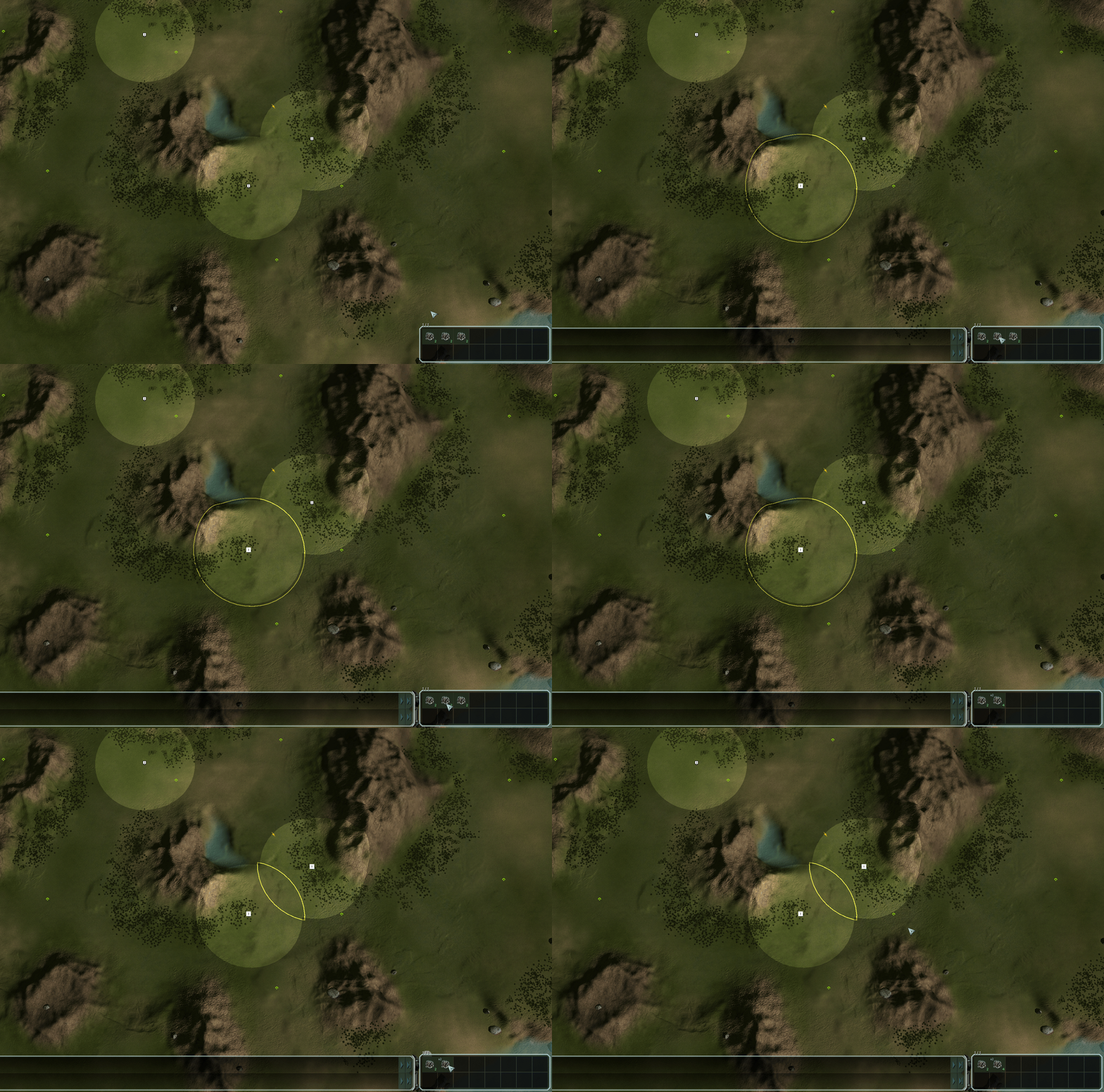
Grouping Missile Silos:
Group silos for simultaneous volleys:
- Select a TML on map (or panel) → hold RMB on another TML in the panel → choose group/ungroup from the context menu.
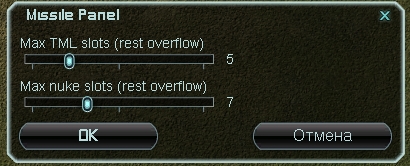
Settings: F10 → ReUI Options → Missile Panel
3. Advanced Key Actions
Contextual smart-bind module. Assigns multiple actions to a single key based on current unit selection.
Despite the name, this module adds no visual panels or buttons. It consists strictly of keybinds configured in Key Bindings.
How it works:
- ACU/SACU selected → activates Overcharge (OC)
- Factory selected → toggles Repeat Queue
- Transport selected → enters load mode
(All on a single keybind)
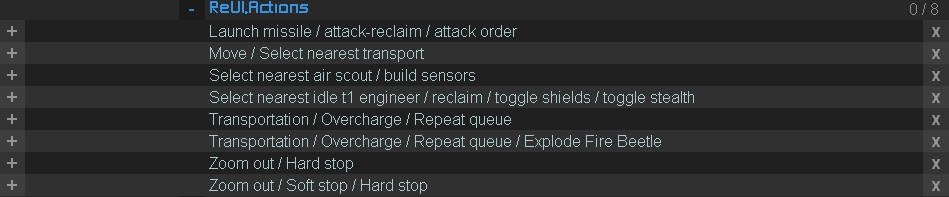
Launch missile / attack-reclaim / attack order- launch missile (silo selected) / attack-move (engineers/factories) / attackMove / Select nearest transport- selects nearest free transport / activates MoveSelect nearest air scout / build sensors- selects nearest air scout / build radars/sonars (if engineer selected)Select nearest idle t1 engineer / reclaim / toggle shields / toggle stealth- selects nearest idle T1 engineer → reclaim order on cursor / toggles shields or stealthTransportation / Overcharge / Repeat queue- unload (transports) / Overcharge (ACU) / repeat queue (factories)Transportation / Overcharge / Repeat queue / Explode Fire Beetle- same, with instant detonation for Cybran Fire BeetlesZoom out / Hard stop- zoom out / instant hard stop (cancels all unit orders and clears factory queue)Zoom out / Soft stop / Hard stop- three-stage bind: zoom out / soft stop (finishes current factory build, clears queue) / hard stop
(Soft stop does not cancel mobile unit orders: double-tap to trigger Hard stop)Pause / Append unit for transportation- pauses selected or queues units for transport (requiresReUI.Construction)
Settings: F10 → Key Bindings → ReUI.Actions
4. Factory Templates
Quick access to factory build queues directly from the actions panel.
- Places saved build templates onto ActionsPanel buttons
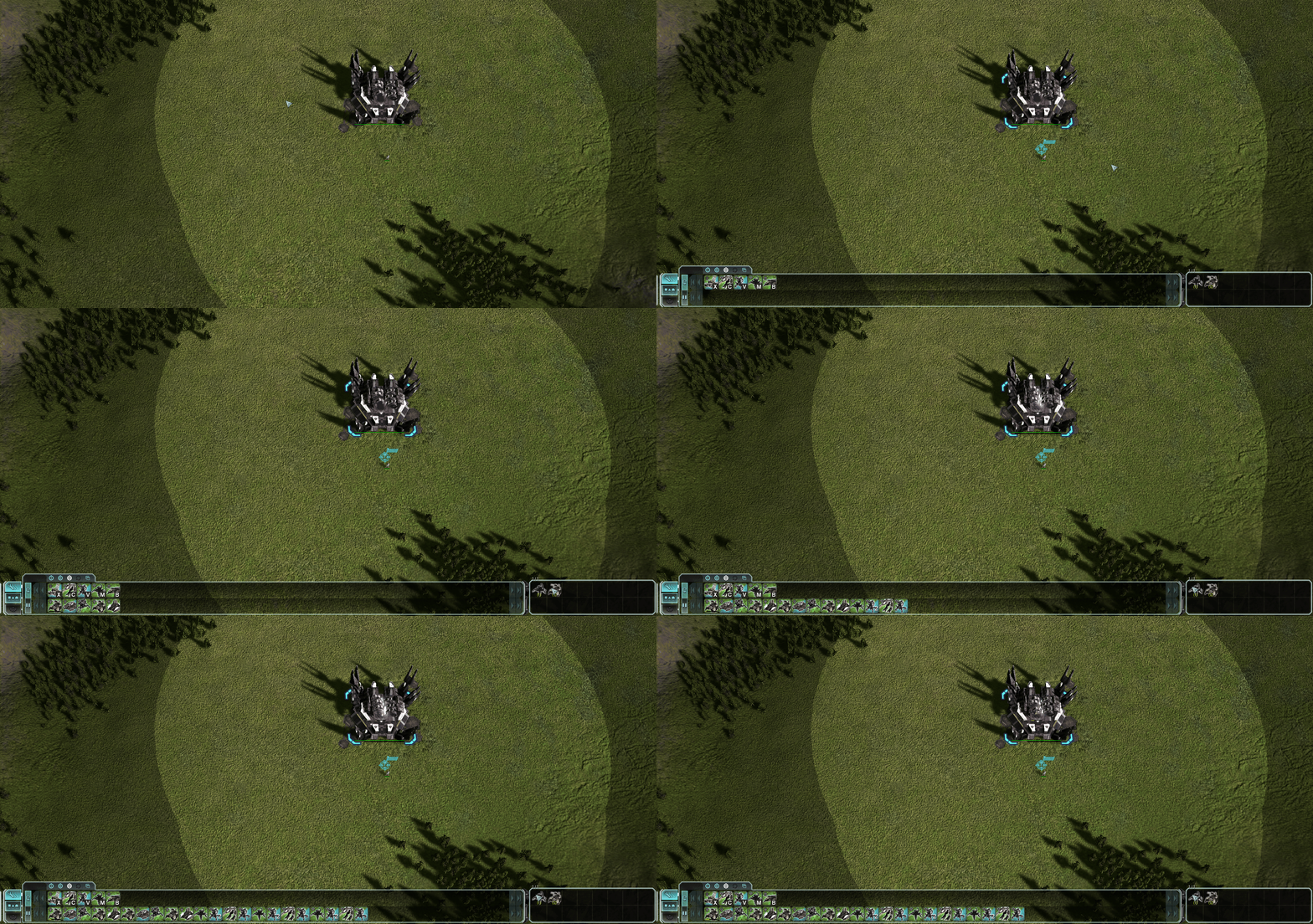
Must be enabled in game options:
F10 → Options → Game → Factory Build Queue Templates.
(GIF below shows how to create and save a template)
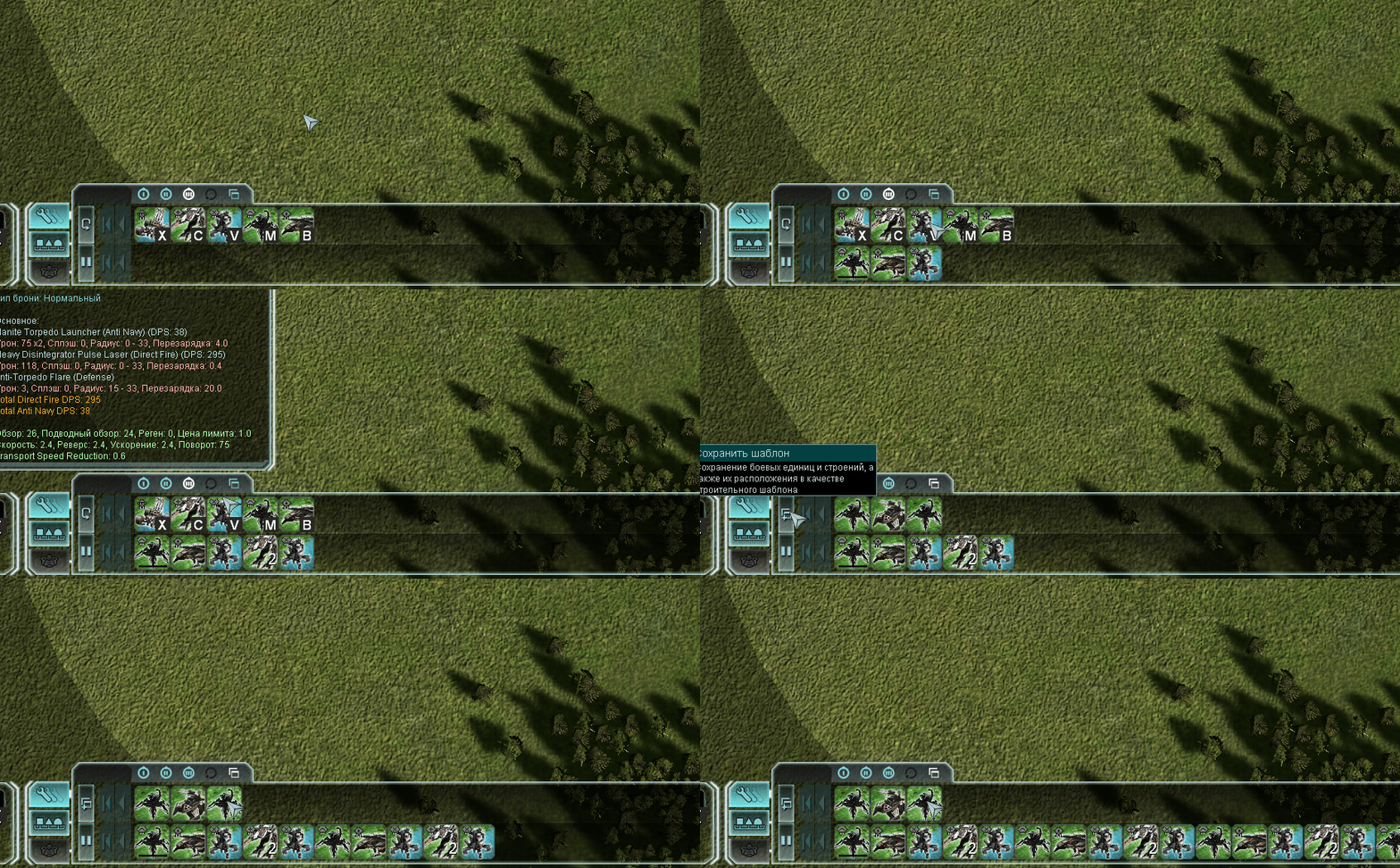
Templates are automatically numbered: (1), (2), up to (24). This determines their display order.
Do not rename templates: custom names will not change panel order and risk breaking the mod script. Keep the default numbers.
🧩 ReUI.Score
Modern player scoreboard with instant one-click unit and resource transfers.
Settings:
- F10 → ReUI Options → ReUI.Score : Fonts / Colors
- F10 → ReUI Options → ReUI.Score : General
Quick Transfers (Main Feature)
Transferring Units (click faction icon):
- LMB on ally faction icon - instantly transfers all selected units
Transferring Resources (click Mass or Energy columns):
- LMB - send 25% of your current pool
- Shift + LMB - send 50%
- Ctrl + LMB - dump 100% of resources to ally
- RMB - request mass/energy from this ally

General Settings
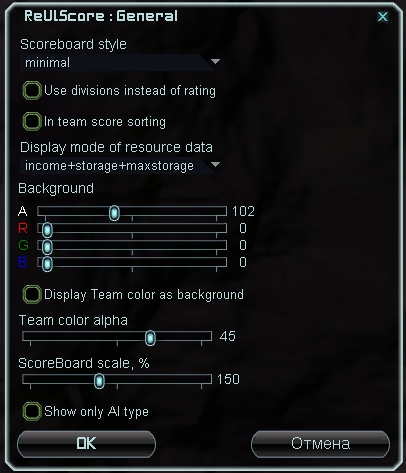
Scoreboard style-minimal,window border,glow borderUse divisions instead of rating- displays division badges instead of rating numbers (Ladder / TMM)In team score sorting- sorts players within team by current scoreDisplay mode of resource data-default,income+storage,income+storage+maxstorageDisplay Team color as backgroundScoreBoard scale, %
Fonts & Colors
Custom ARGB sliders and fonts for player names (Name font/Name color), timers, game speed, unit cap, and observer panel.
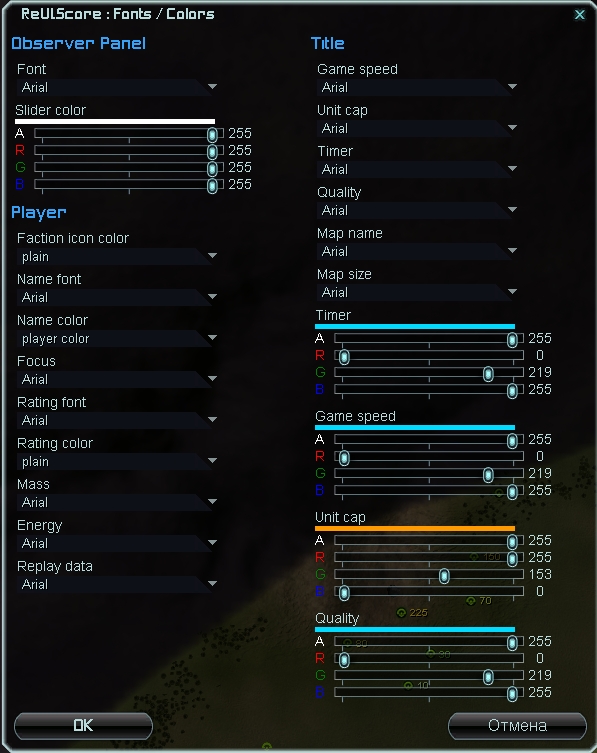
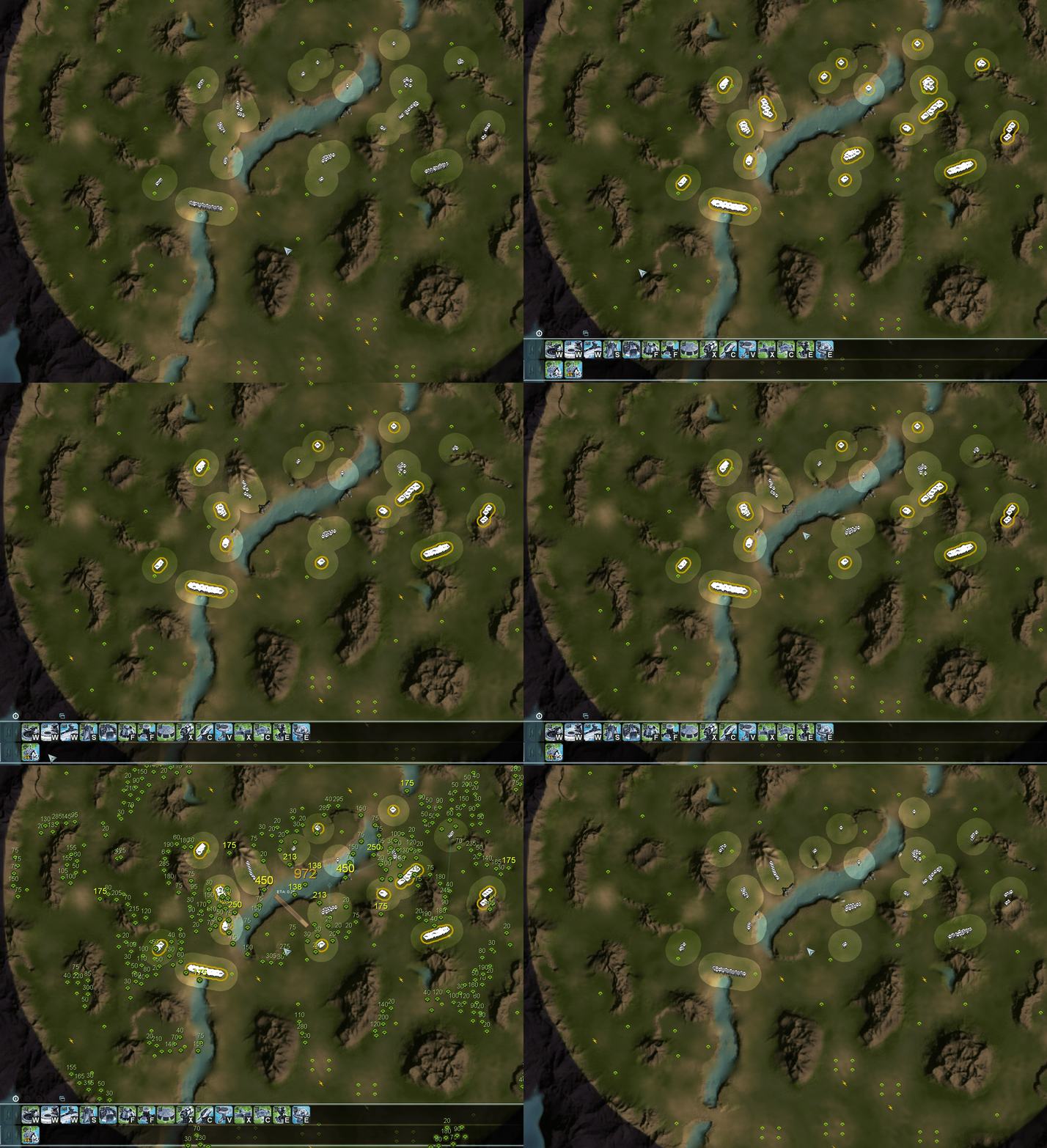
🧩 ReUI.Reclaim
Reclaim overlay with label clustering, total mass counter, and display optimization.
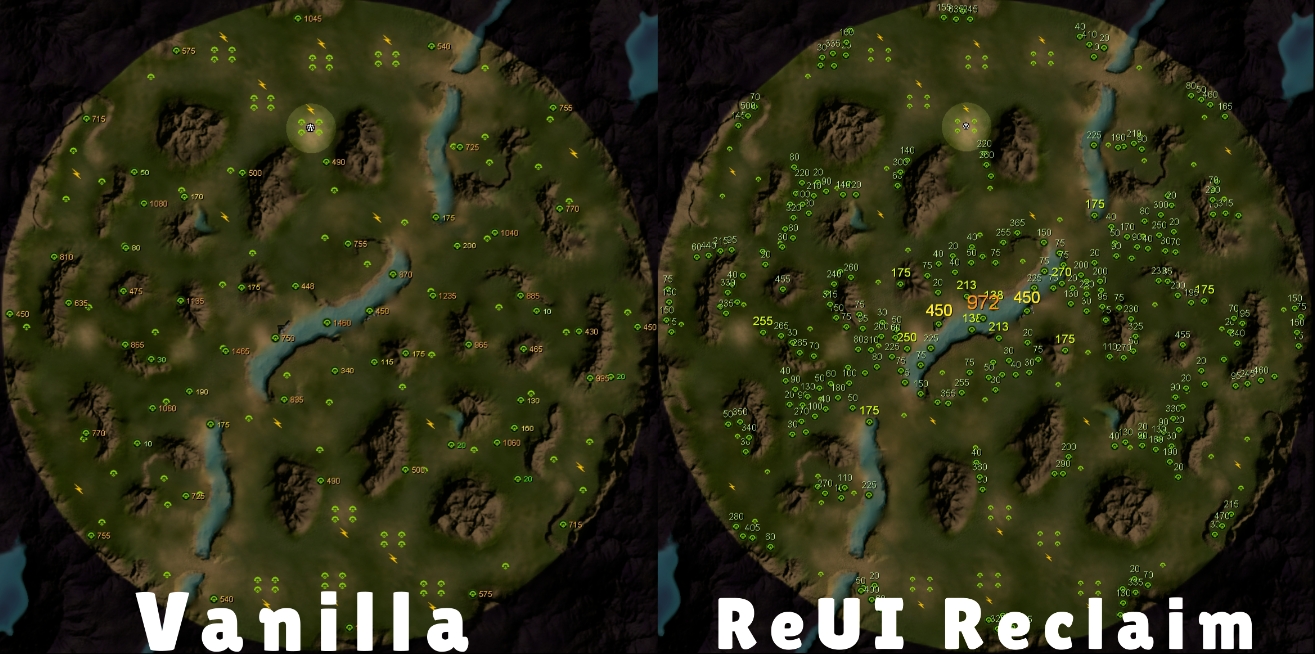
Key Features:
- Auto-display: reclaim labels appear automatically when selecting the reclaim order
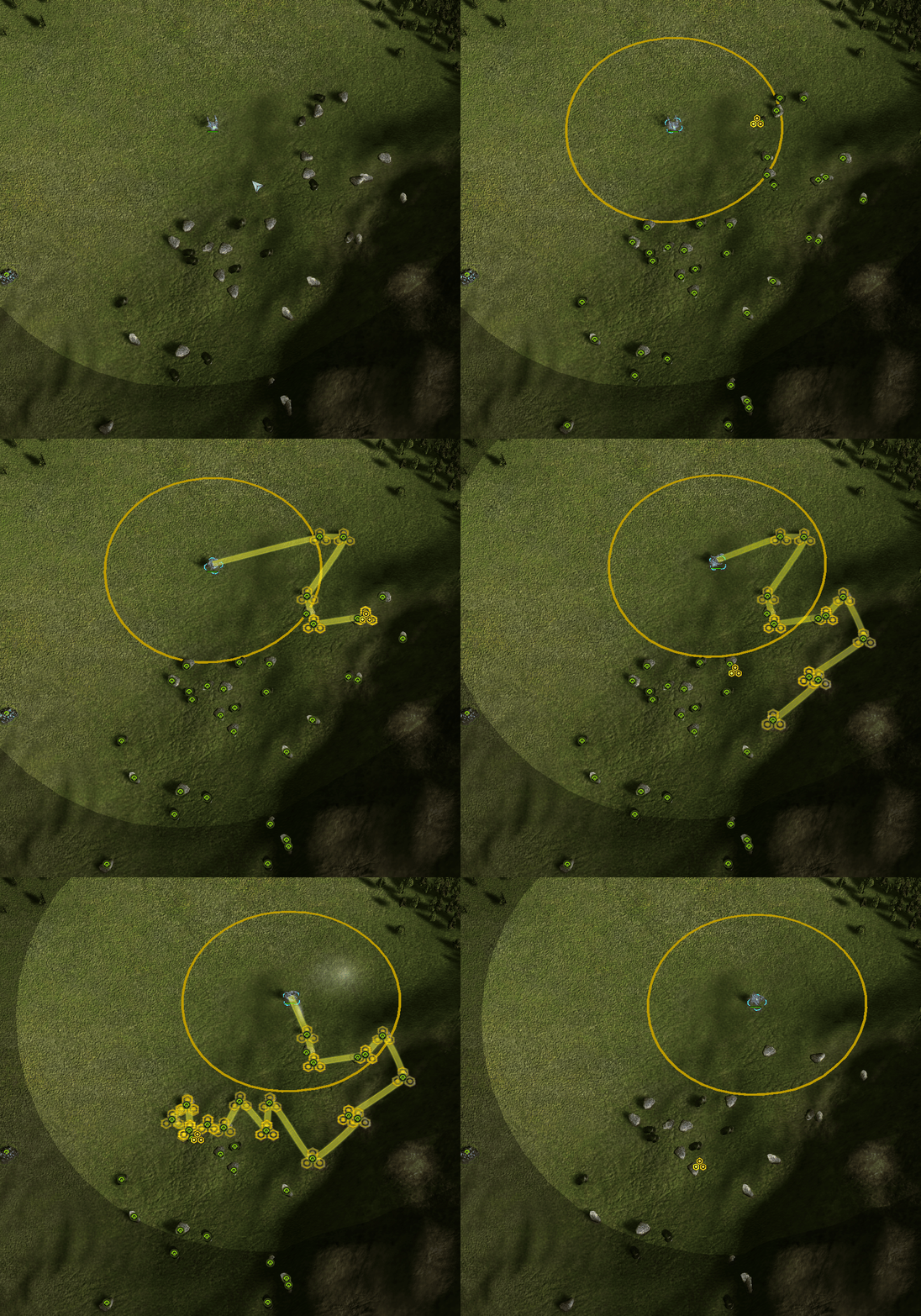
- Batching: groups nearby rocks and wrecks into clusters, eliminating visual clutter
- Total Reclaim Counter: displays total mass available in current view
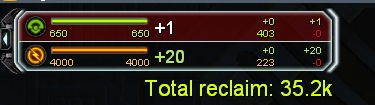
Settings & Performance Optimization
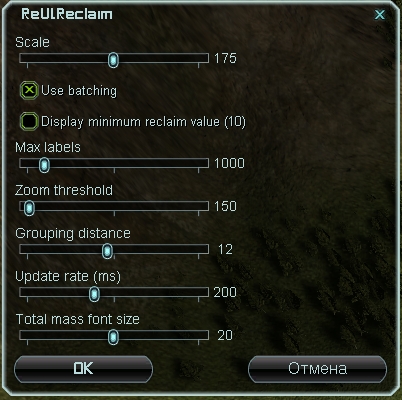
Scale- font size of reclaim labels on mapUse batching- enables label clustering (keep enabled for smooth FPS; disabling rendersZoom thresholdandGrouping distanceinactive)Display minimum reclaim value (10)- show labels on tiny rocks under 10 massMax labels- on-screen label limit (1000 provides great balance)Zoom threshold- zoom-out threshold for label grouping. 150-170 is ideal: numbers remain visible as long as the engine allows issuing reclaim ordersGrouping distance- clustering radius (increasing helps performance)Update rate (ms)- scan rate (200 ms prevents micro-stutters)Total mass font size
Settings: F10 → ReUI Options → ReUI.Reclaim
🧩 ReUI.Hotbuild
Custom build-bind creator with template support and hybrid chains (structures + unit orders).
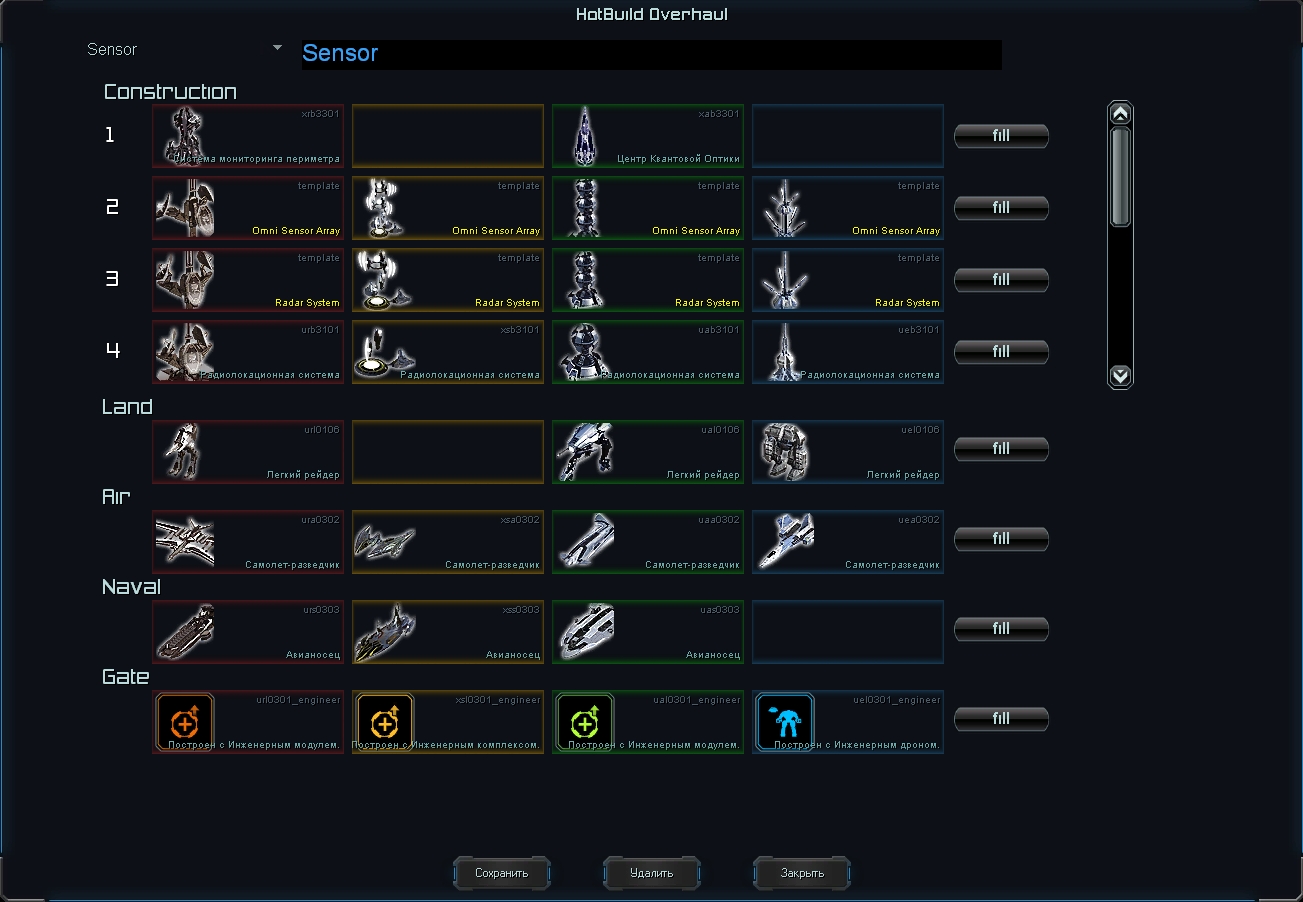
Why Vanilla Hotbuild Falls Short
In standard game, players are locked to rigid presets: you cannot bind generators, radars, and factories onto a single key E.
ReUI.Hotbuild removes all limits: build custom sequences combining any structures, units, and templates.
How It Works:
1. Build the Sequence in the Editor
Assemble the sequence:
F10 → ReUI Options → ReUI.Hotbuild
Enter bind name in top bar and click Save (top-left dropdown lets you edit existing binds).
Execution order runs strictly top to bottom: highest row = 1st keypress, next row = 2nd keypress, etc.
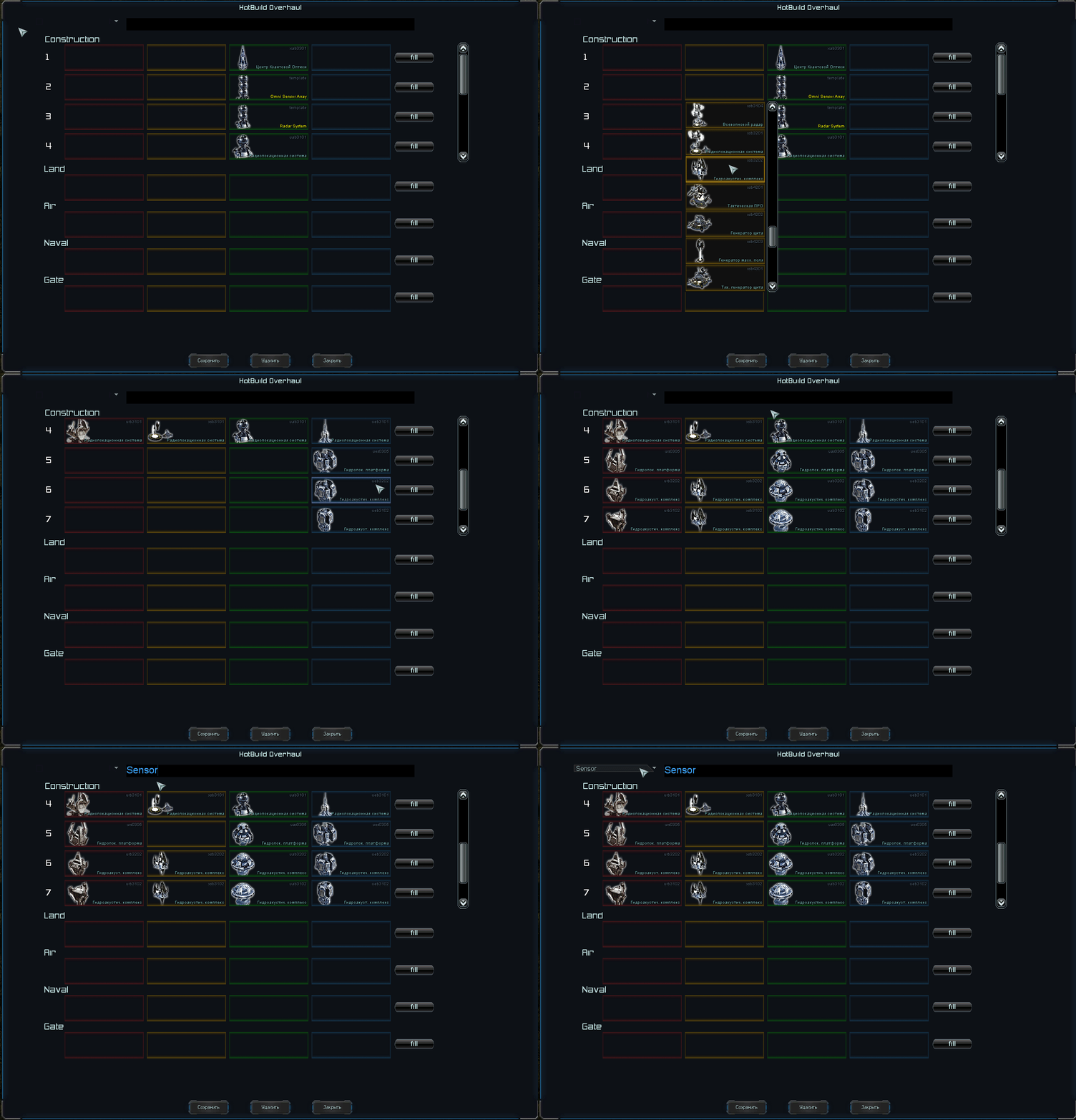
- English only: name templates strictly in Latin characters (non-ASCII breaks the mod).
- Where to find: saved templates appear at the very bottom of the list in yellow.
- Restart required: newly created templates will not appear in Hotbuild until you restart the game!
The selector list is flat and unranked. To avoid misidentifying tiers, select the structure from the faction where tier icons are most distinct, then click Fill:
- Radars: easiest to distinguish on Aeon
- Sonars: clearest on UEF
- And so on for other ambiguous buildings
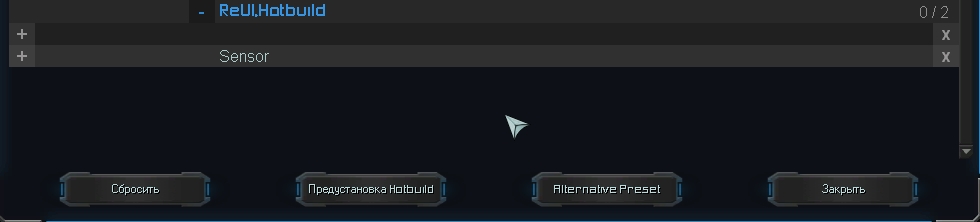
2. Automatic Registration
Registers as a new hotkey under:
F10 → Key Bindings → ReUI.Hotbuild
3. Assign Hotkey
Bind the registered action to any key (e.g. E).
Core Features:
1. Hybrid Binds (Engineer + Factory on One Key)
Mix buildings and unit production orders on the same key:
- Engineer / ACU selected → E cycles generators, radars, factories
- Factory selected → E queues units (e.g. air scout at air factory, Brick at T3 land factory)
2. Templates in Cycle
Insert entire saved templates into the bind cycle (e.g. instead of a naked T3 mex, drop a fully capped T3 mex template).
Chain Editor: F10 → ReUI Options → Hotbuild
Key Bindings: F10 → Key Bindings → ReUI.Hotbuild
🧩 ReUI.Construction (+ Templates)
Revamped lower construction panel: drag-and-drop queues and template preview.

Consists of two components: the main panel (ReUI.Construction) and the template addon (ReUI.Construction.Templates).
Construction Panel (ReUI.Construction)
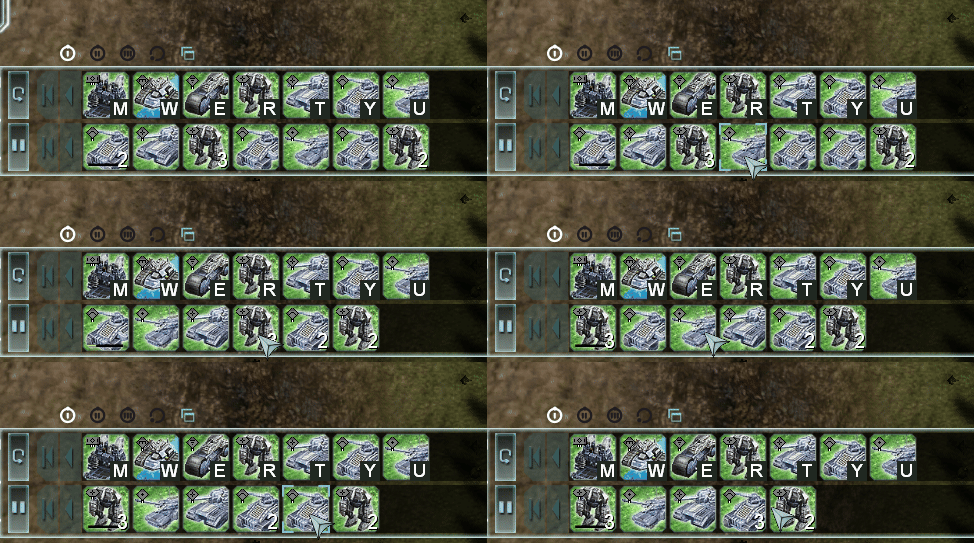
Drag-and-Drop Factory Queue
No need to cancel queues to rush an emergency scout or AA. Hold LMB on a queued unit icon and drag it forward to build next:
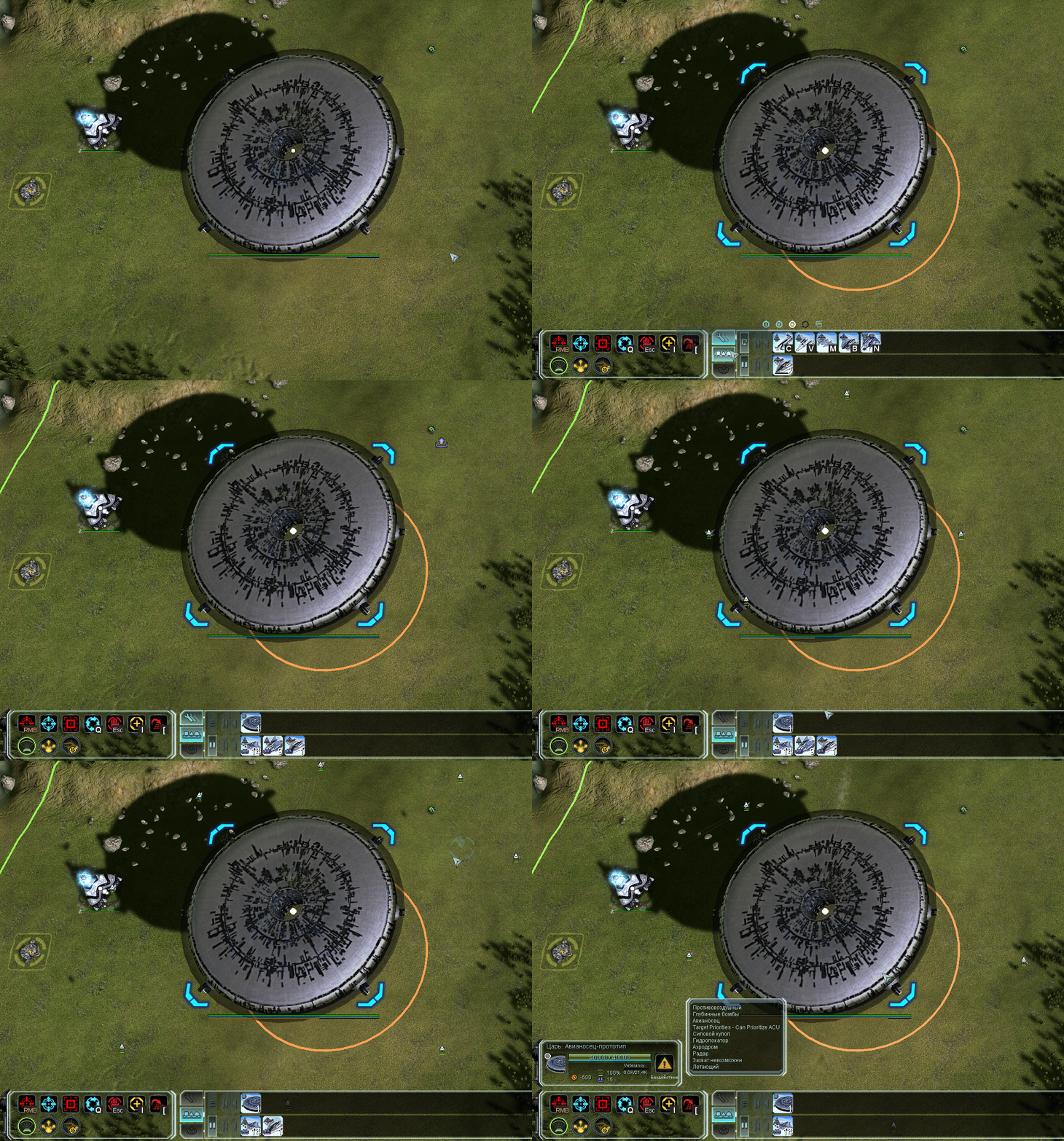
Selective Transport & Carrier Cargo Unloading
Selecting a transport shows loaded units and counts. Click to choose who drops first (see GIF below). (Vanilla has unloading, but this adds visible unit counts).
Settings: F10 → ReUI Options → ReUI.Construction
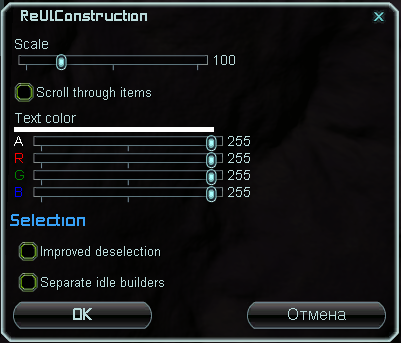
Scale- panel scale (50% to 300%)Scroll through items- compact mode: scroll long building lists with mouse wheel instead of expanding multiple rowsText color- ARGB slidersImproved deselection- cleaner unit deselection responseSeparate idle builders- separates working vs idle engineers into distinct icons (marked with warning sign). Grab only idle builders in one click without disturbing active builders (see GIF below)
Template Tool (ReUI.Construction.Templates)
Template creation is already native to FAF, so this module is valued strictly for its interactive hover preview:
- Base Templates: hovering over a template displays a minimap preview showing exact building footprints and spacing
- Factory Templates: shows a unit grid with exact unit counts
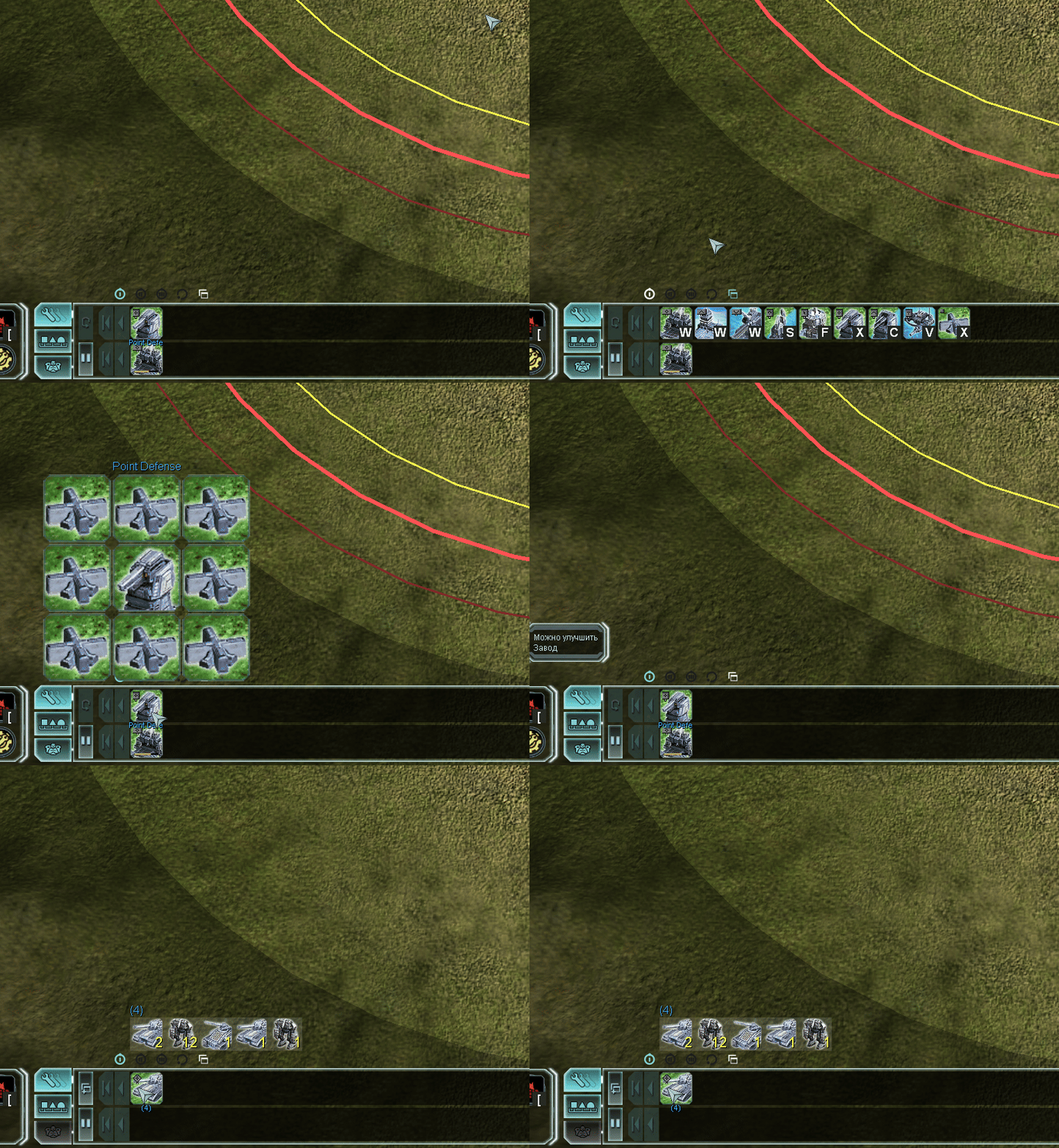
Settings: F10 → ReUI Options → ReUI.Construction.Templates
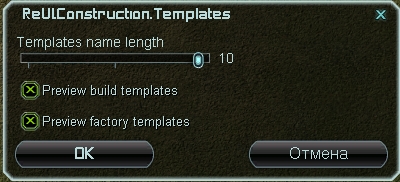
Templates name length- slider (1 to 10 characters)Preview build templates- toggle base template previewPreview factory templates- toggle factory queue template preview
🧩 ReUI.Economy (+ EconomyMiddle)
Resource bar scaling and screen centering.
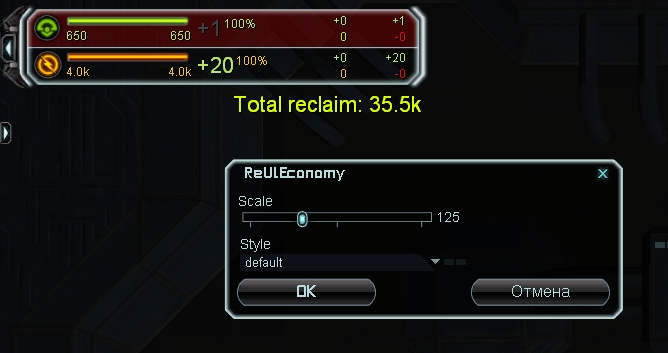
- Scaling (
Scale): scales the mass and energy bar (essential for 2K/4K displays) - Style &
EconomyMiddleaddon:defaultstyle keeps the bar in top-left- Installing the
EconomyMiddleaddon adds a style that moves the resource bar strictly to the top center of the screen
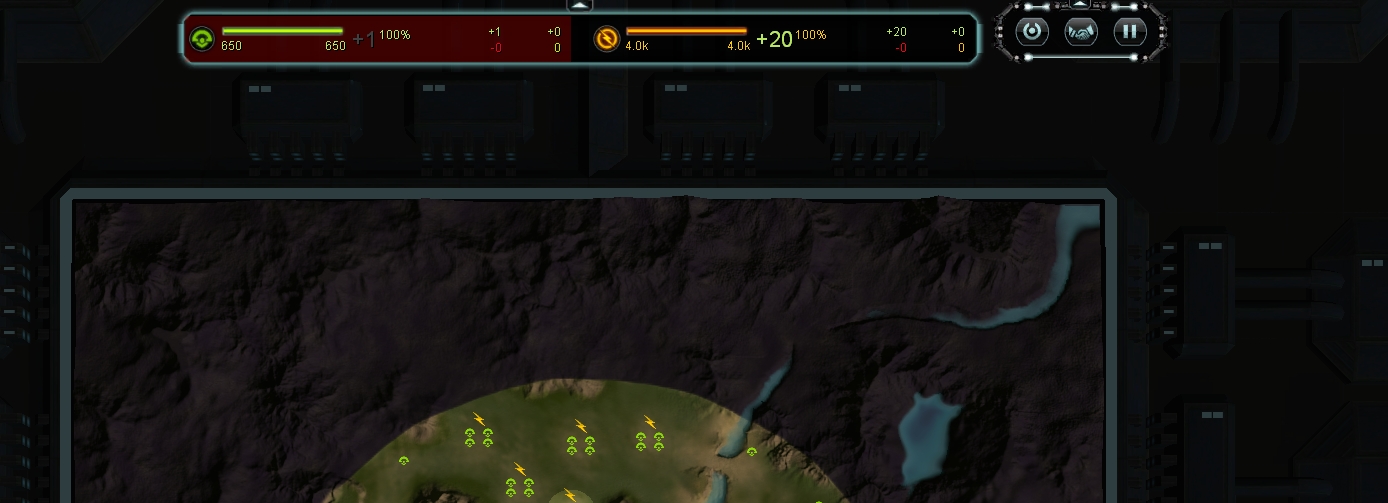
Settings: F10 → ReUI Options → ReUI.Economy